
Using angular-date-time-input directive we can format the display of a date in an input box or allow users to enter a valid date with the keyboard.
Requirements:
AngularJS 1.4.x or higher (1.0.x will not work)
moment.js 2.8.3 or higher for date parsing and formatting
bootstrap's glyphicons for arrows (Can be overridden in css)
First add the datetimepiker.js and datetimepicker.templates.js javascript files (from angular-bootstrap-datetimepicker source files) in your project.
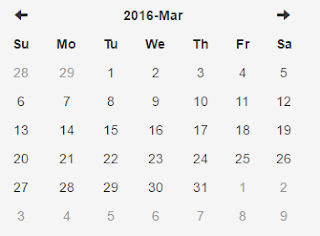
This section explains how to show a datetime picker when user clicked on a textbox.
First add the following textbox.
<input type="text" data-ng-model="model.date" id="dropdown1" data-toggle="dropdown">
Now, add the following <ul> element which has datetime picker inside it.
Requirements:
First add the datetimepiker.js and datetimepicker.templates.js javascript files (from angular-bootstrap-datetimepicker source files) in your project.
Then add the 'ui.bootstrap.datetimepicker' module as a dependency to your application module:
var myAppModule = angular.module('MyApp', ['ui.bootstrap.datetimepicker'])
Now you can use the datetimepicker directive in your html page as below.
<datetimepicker data-ng-model="model.date"></datetimepicker>
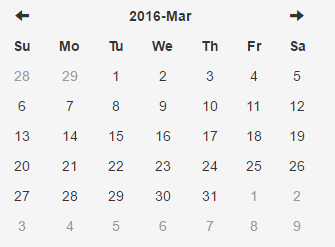
Above code renders the following datetime picker in the browser.
Show Angular datetime picker when textbox clicked
First add the following textbox.
<input type="text" data-ng-model="model.date" id="dropdown1" data-toggle="dropdown">
Now, add the following <ul> element which has datetime picker inside it.
<ul class="dropdown-menu" role="menu" aria-labelledby="dLabel">
<datetimepicker data-ng-model="data.dateDropDownInput" data-datetimepicker-config="{ dropdownSelector: '#dropdown2' }"/>
</ul>
<datetimepicker data-ng-model="data.dateDropDownInput" data-datetimepicker-config="{ dropdownSelector: '#dropdown2' }"/>
</ul>
In the above datetimepicker directive we added data-datetimepicker-config="{ dropdownSelector: '#dropdown1' }" attribute. dropdownSelector should match the id of the textbox element.
Now when we click on the textbox, datetimepicker will be visible. Once you select the date and time that value will be visible in that textbox.
Now when we click on the textbox, datetimepicker will be visible. Once you select the date and time that value will be visible in that textbox.
This way we can implement angular datetime picker to select the date and time. Please do comment for any suggestions/queries.

